Create a race map poster or video
Turn a race route into a map picture or an animated route drawing. In the Poster editor you set the route, map style, labels and export size, so you can prepare a social post, wallpaper or print image from the same race.
Open the poster editor
- Open Races.
- Choose a completed race.
- In its Overview, find Make something from this race.
- Choose Poster.
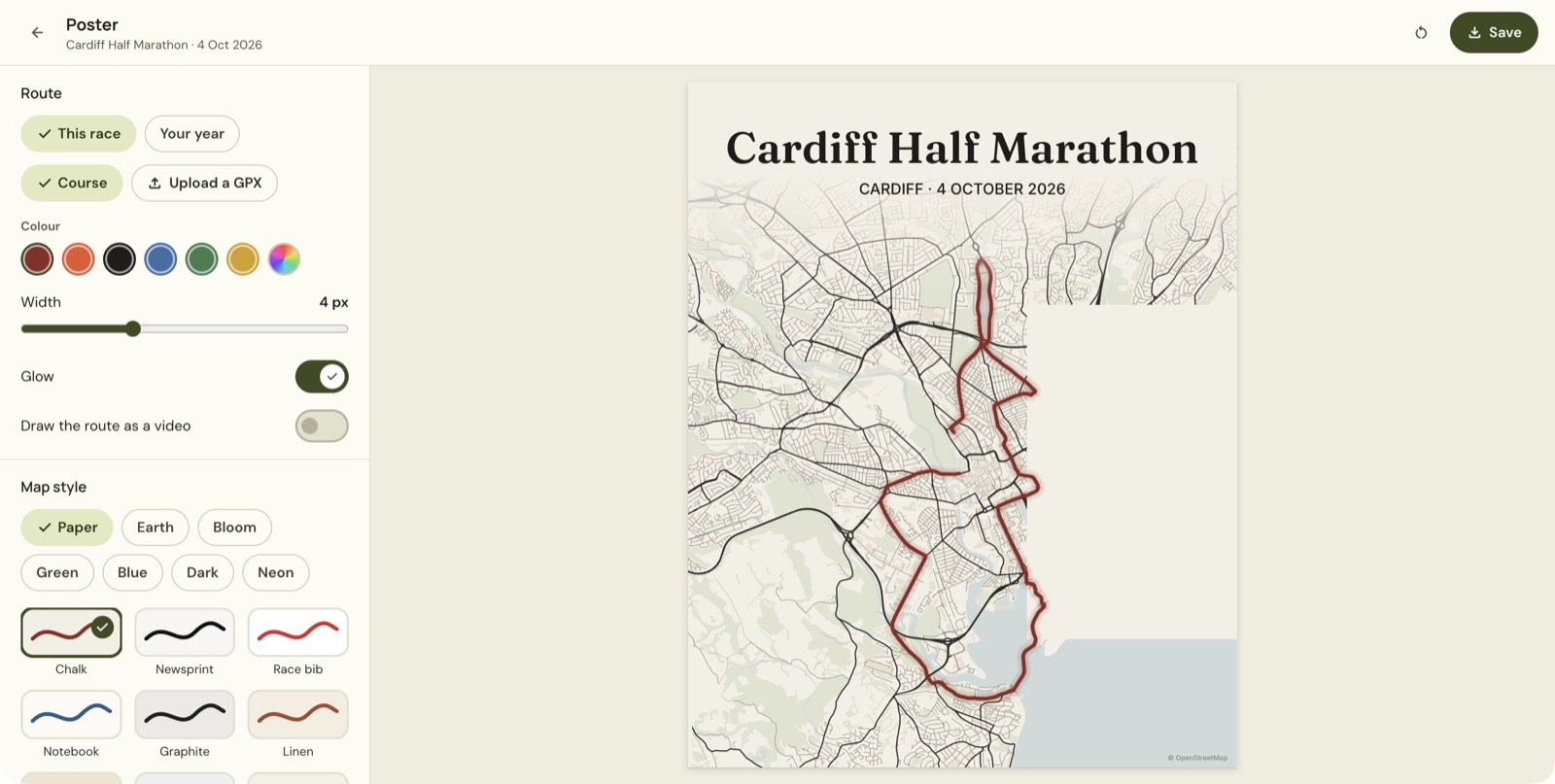
Choose the route
Under Route, choose the source that suits your picture. The editor offers This race, Your year, Course, and Upload a GPX. Check the preview to confirm the intended line is present before styling it.
A course line shows the race route. It does not mean your own run recording is linked. For a different route, upload a GPX you have permission to use. A year-based map depends on the route recordings available in your account.
Set the route colour using the style's own colour, a swatch, or Any colour. Adjust Width and Glow to make the line readable against the map. Zoom into the preview before you choose a thin line for a large export.
Style the map
Use Map style to choose a family and appearance. The editor offers families including Paper, Earth, Bloom, Green, Blue, Dark and Neon, with individual styles such as Chalk, Newsprint, Race bib and Notebook.
Under Layers, choose whether to show water, parks, hills, buildings, roads, places and street names. Remove details that compete with the route but keep enough geography to recognise the place. Effect has None, Vignette and Radial options.
Set the output size before positioning text
Choose Social, Print, Web or Wallpaper, then select the intended format. Social examples include square, portrait and Story/Reel sizes. The Instagram portrait size is 1080 × 1350; Story/Reel is 1080 × 1920.
Changing aspect ratio can alter the composition, so choose the output size before finishing the text layout. Check the size summary near the save controls.
Edit the labels and extra details
In Text, select the text item you want to edit. Change its wording, font and size. Drag text on the poster to reposition it. Use Add text for another label or Remove this text for the selected one.
Under Add to the poster, the editor offers start/finish markers, distance markers and elevation. They depend on the route information available, so check that any added details stay legible at the final size.
Make an animated route drawing
- Switch on Draw the route as a video.
- Choose a duration of 4 s, 8 s or 12 s.
- Choose Preview to review the animation.
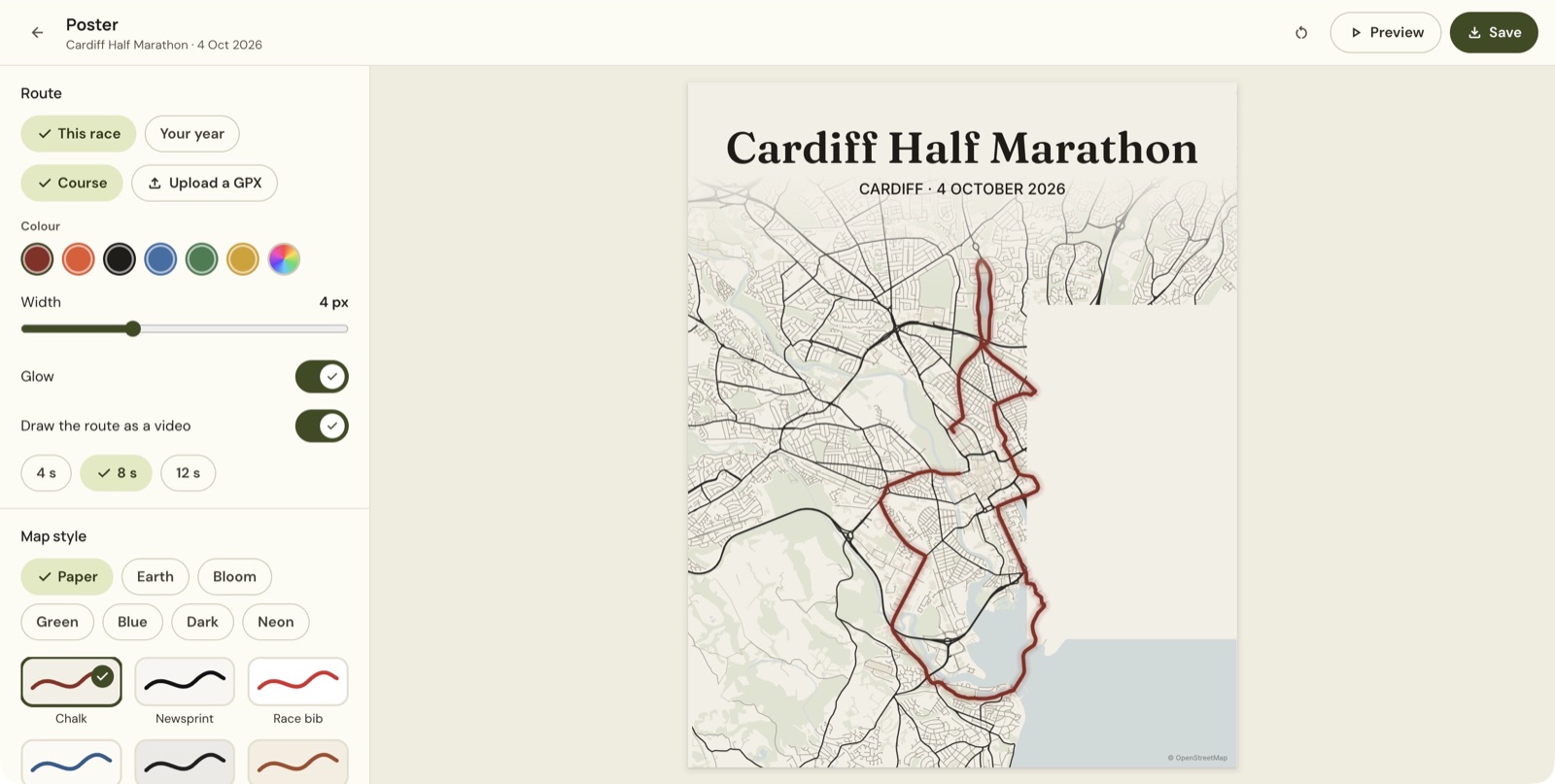
A video saves as an MP4, and the save section shows its size and length. Choose Save video for the animation, or Save image for a still PNG. Review the result before sharing it elsewhere.
The poster includes an OpenStreetMap credit. Keep that credit on the exported design.
Before saving
Check the route source, text, aspect ratio and map readability. For a video, also check the duration and preview. Use Start again to rebuild the design. It is a different action from leaving the editor.
A poster needs a route line. It does not need a finish photo.
Still stuck? Email [email protected] and say which page you were on.