Set up your profile
Set your home location and display preferences so the app fits the way you run. You can also choose which race time your reports use and how the app looks on your devices.
Set your home location
- Open You → Profile.
- Under About you, find Home location.
- Type your town or city.
- Select the matching place from the suggestions.
Check the country as well as the name when several places share it.
The example uses Bristol, England, United Kingdom. The app uses home for heat warnings, journeys to races and finding the nearest races. Set it before you explore race travel, so those tools have a starting point.
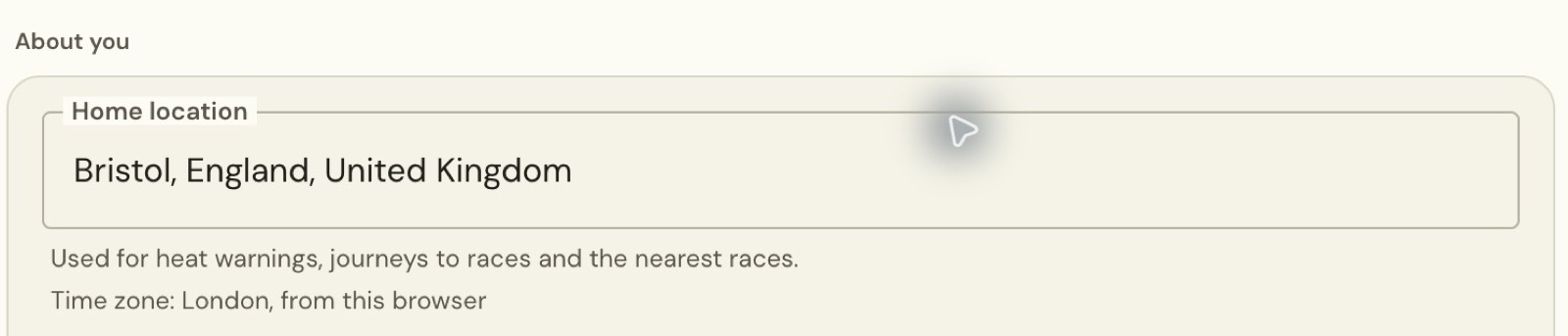
The Time zone line sits beneath the home location. In the example it says London, from this browser. That line shows which time zone the browser supplies. The profile screen has no separate time-zone picker.
Your name and email appear above About you. They come from the account you signed in with.
Choose kilometres or miles
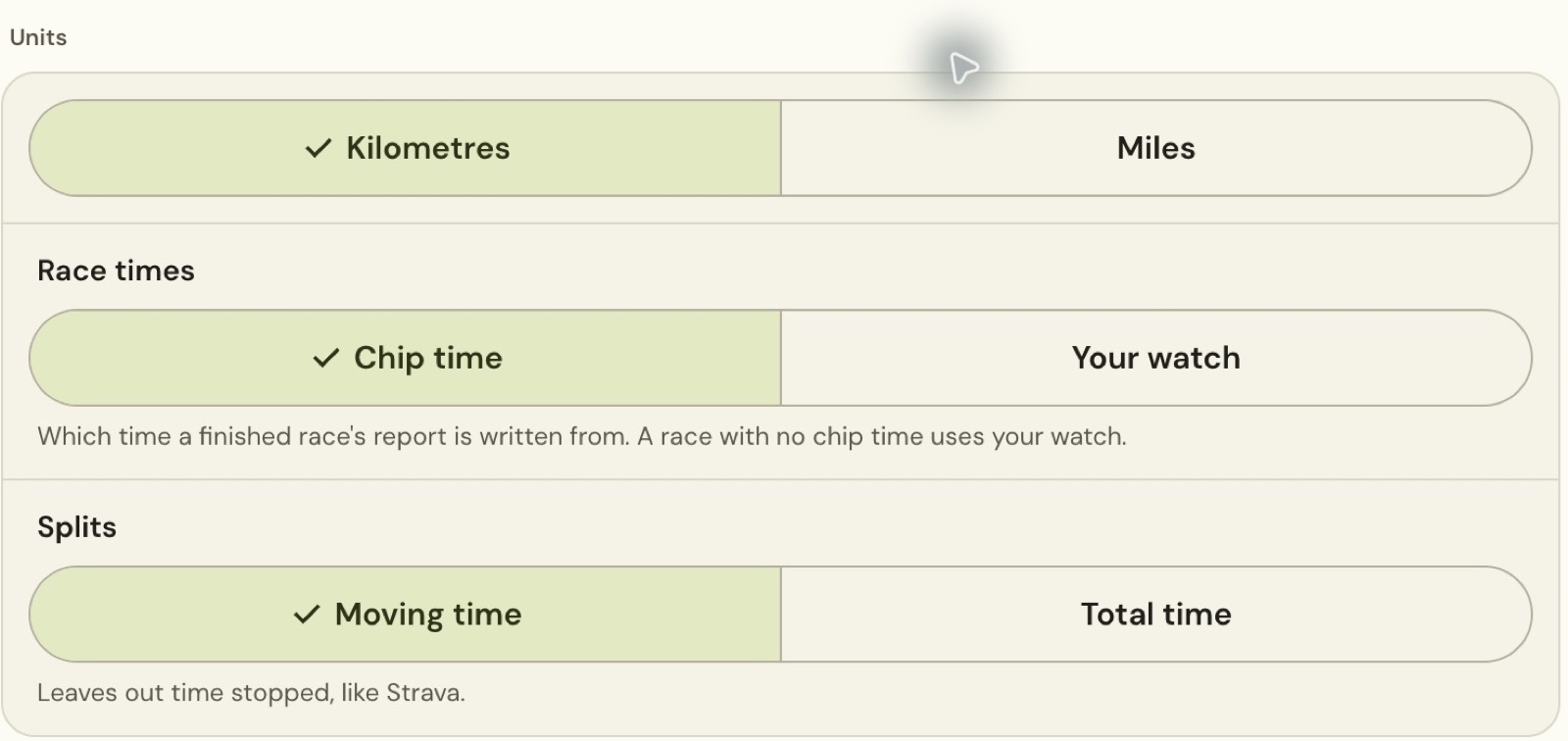
Scroll down to Units. Choose Kilometres or Miles, The selected choice has a tick, so you can see your current preference without changing it.
This setting sits below Home currency, which totals trip costs. Units and currency have separate controls.
Choose the time used in race reports
Under Race times, select Chip time or Your watch. This controls which time a finished race’s report is written from. If a race has no chip time, the app uses the watch time.
Pick the time you want to review after a race. You can return here to change it.
The separate Splits setting offers Moving time and Total time. Moving time leaves out time stopped. This matters when you compare splits with a race result that includes the whole elapsed time.
Choose light, dark and a colour scheme
Open You → Appearance. Under Theme, choose Light, Dark or Match system. Match system follows your device’s light or dark setting automatically.
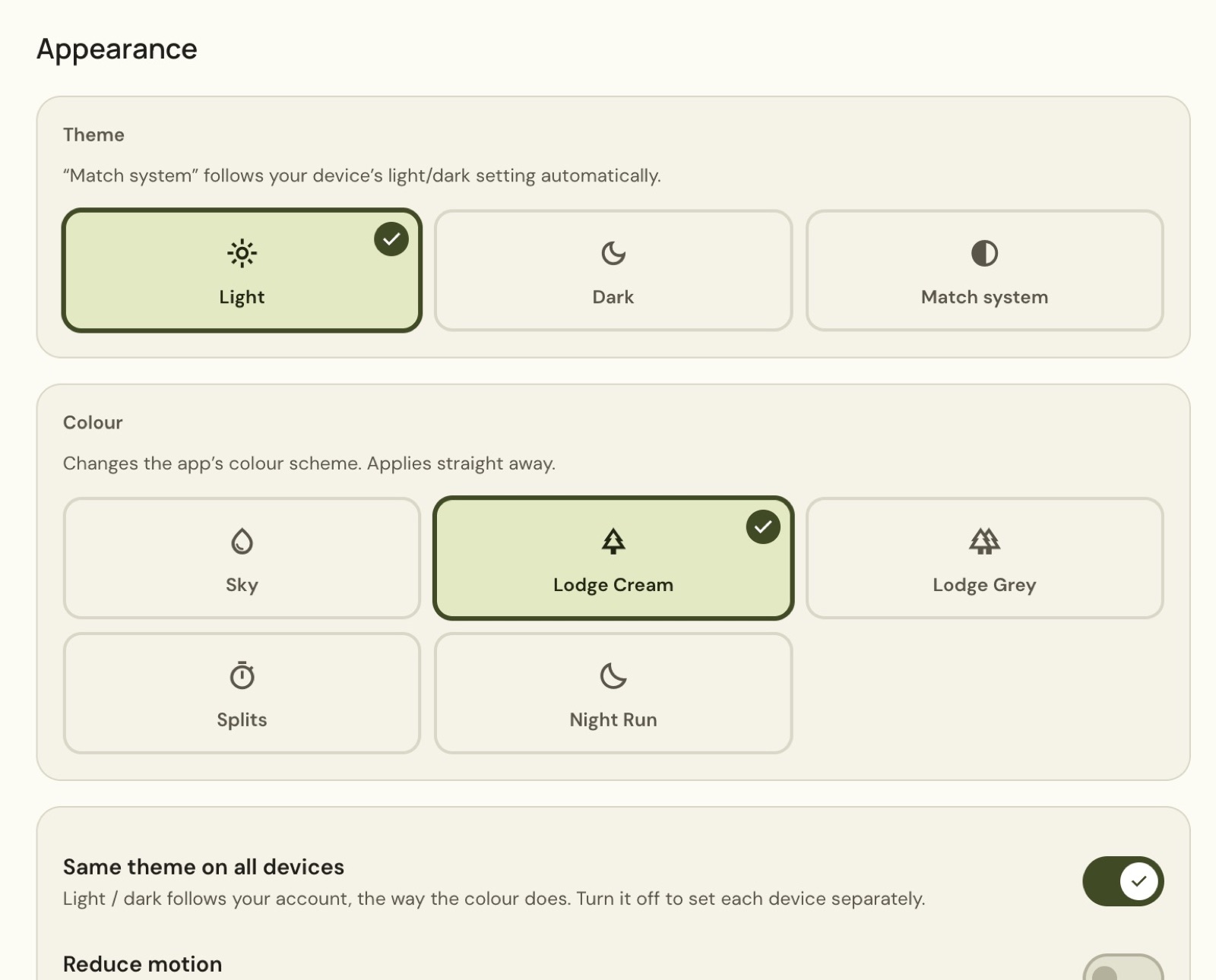
Under Colour, choose Sky, Lodge Cream, Lodge Grey, Splits or Night Run. Colour changes apply straight away, so you can see the effect as you choose.
Same theme on all devices makes the light or dark choice follow your account, as the colour does. Turn it off if you want to set each device separately. Reduce motion turns off PB and goal confetti and reduces other motion and transitions.
Still stuck? Email [email protected] and say which page you were on.