Find a run and understand its analysis
Open Runs to browse your history by week, search for a session and inspect pace, heart rate, terrain and comparisons with previous runs. Choose a run to open its detail.
Find the week or session
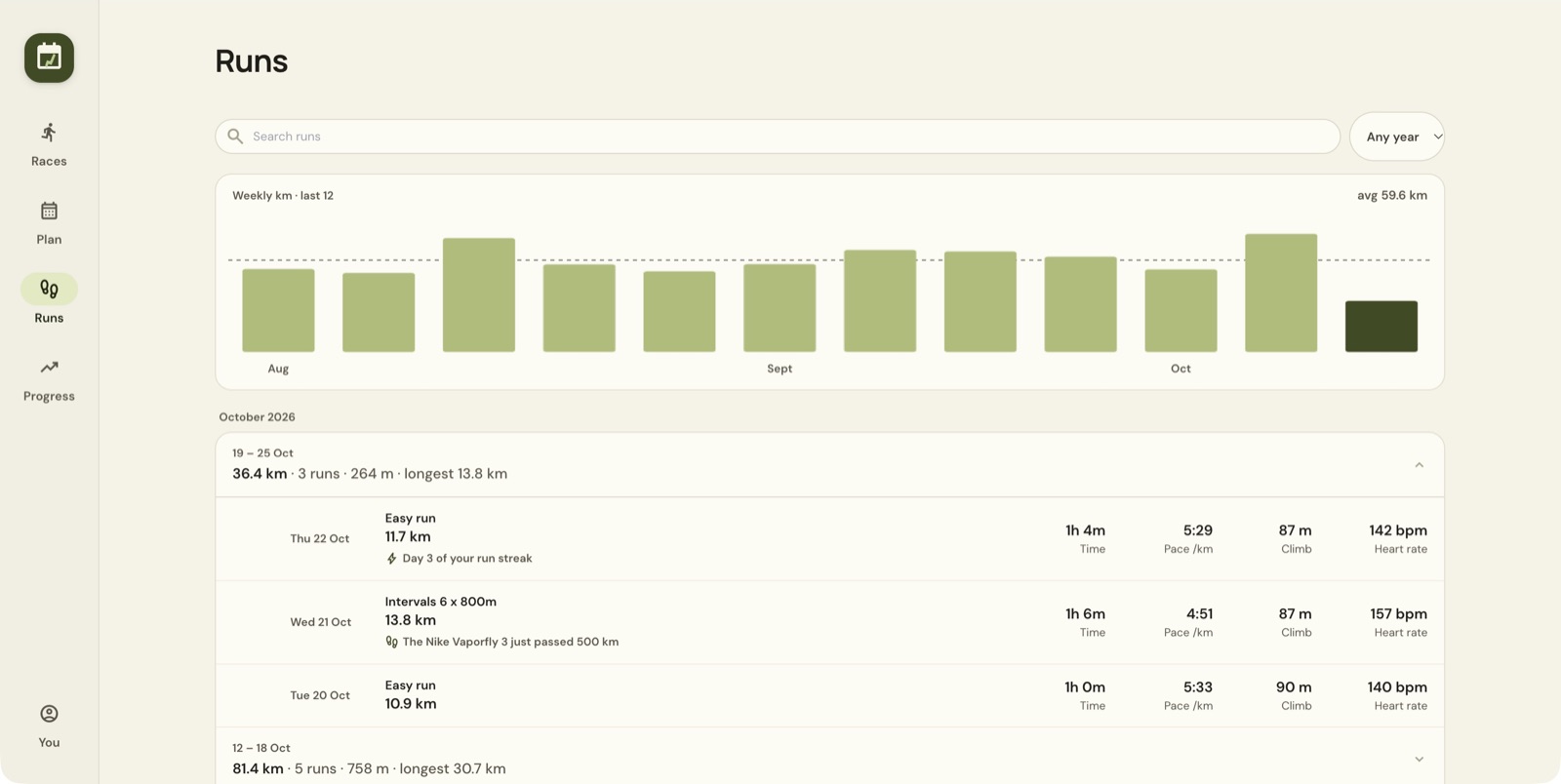
Use Search runs or the Year selector to narrow the list. The weekly-distance chart covers the last 12 weeks; select a week to show it. With a keyboard you can also move between weeks that have runs.
Each week heading summarises distance, run count, climb and longest run. Expand the week to browse its sessions. Individual run rows show the measurements available for each recording, including time, pace, climb and average heart rate.
Open a run
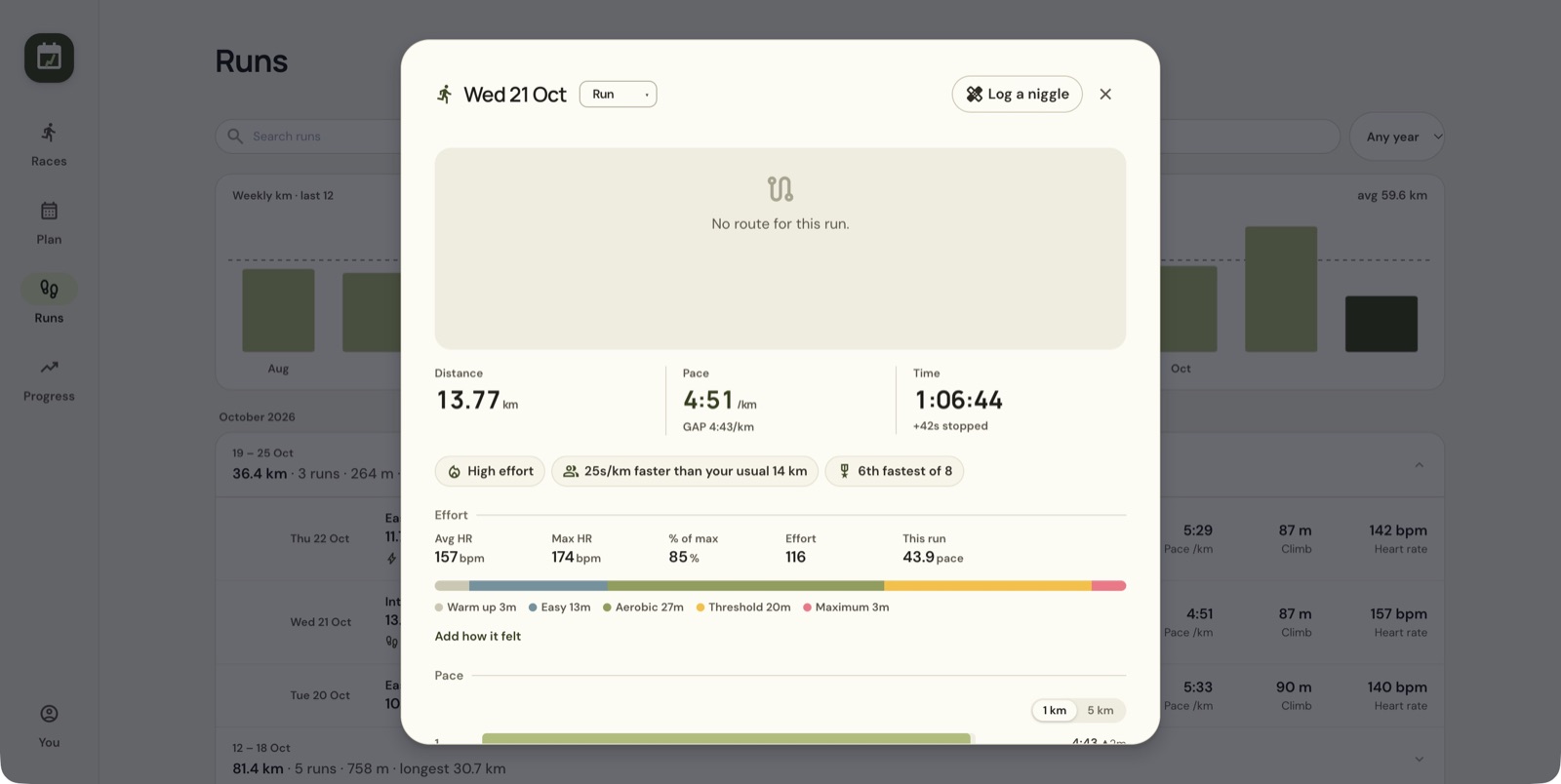
Select a run to open its detail panel. The example has no route, but still contains distance, timing and heart-rate data. Without a map, the other measurements are still valid.
| Measurement | How to read it |
|---|---|
| Distance | The recorded run distance |
| Pace | Time per distance unit |
| GAP | Grade-adjusted pace, a terrain-adjusted comparison |
| Time and stopped time | The displayed running time and separately indicated stops |
| Average and maximum HR | Recorded heart rate in beats per minute |
| Percentage of maximum HR | Heart rate relative to the maximum used by the app |
| Effort | The app's effort indicator; a different quantity from pace |
The example also compares this run with others at roughly the same distance. It ranks this run among your own comparable runs, not against other runners.
Inspect splits and comparisons
Use 1 km or 5 km in the Pace section to change the split grouping. The panel highlights fastest and slowest splits and shows elevation changes where available. The final split can be shorter than the others.
Under Bests, inspect notable milestones and the list of comparable runs. A faster raw pace and faster grade-adjusted pace answer slightly different questions, so check terrain before comparing two sessions.
Review terrain, shoes and fitness inclusion
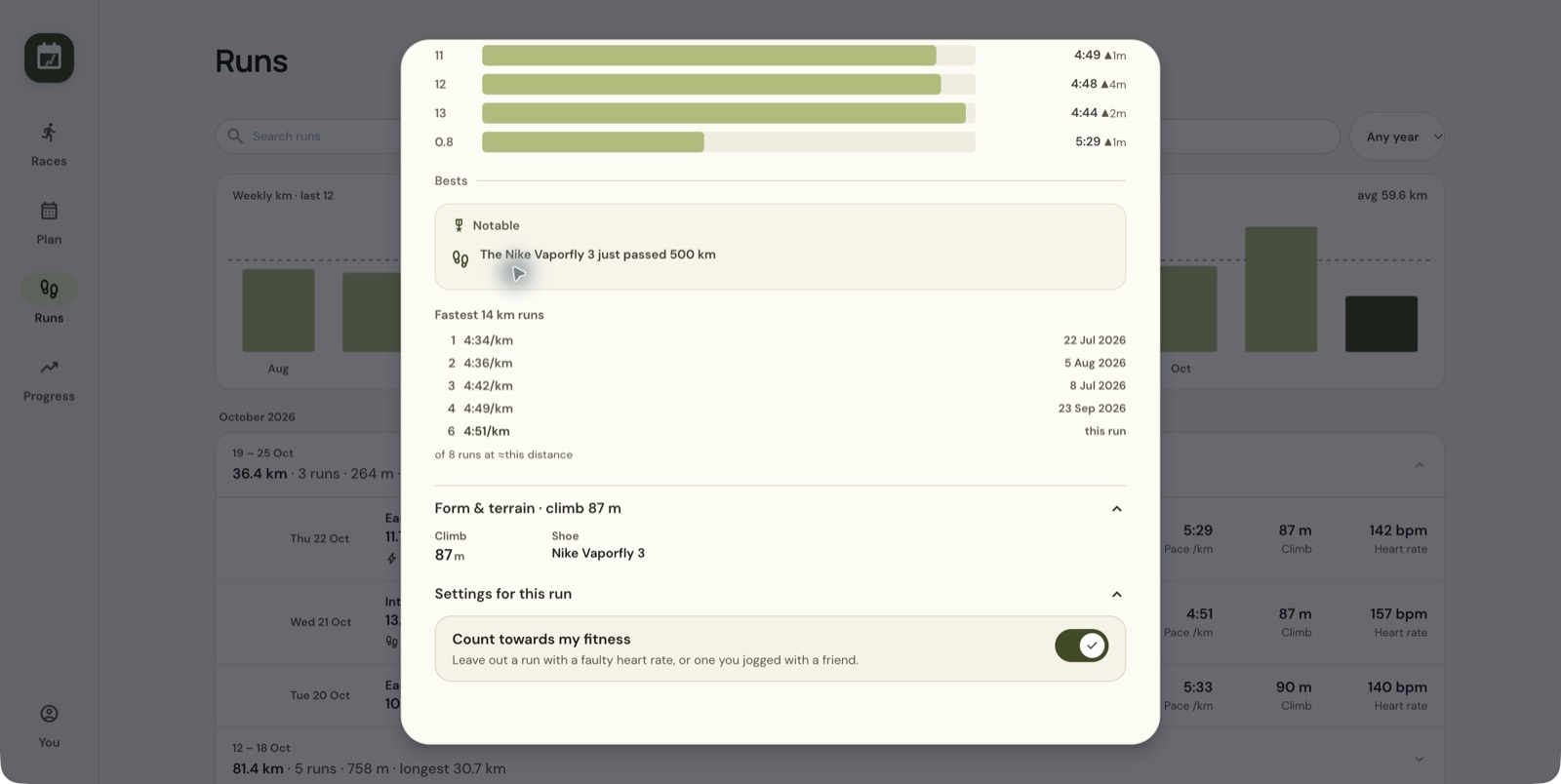
Expand Form & terrain for details such as climb and the shoe assigned to the recording. Expand Settings for this run for Count towards my fitness. The app suggests excluding recordings with faulty heart rate or runs that are unrepresentative of your fitness.
Changing that checkbox changes the data behind your fitness estimate. Inspect the recording before you change it. A slower session is not necessarily a faulty one.
Add your own context
Use Add how it felt to record how the run felt. Log a niggle is at the top of the detail panel. The workout-type selector identifies the session type. Check the currently displayed type before editing it.
Heart-rate zones depend on the maximum heart rate used by the app. Review You → Profile if the percentages or zone breakdown need checking. The profile's Splits preference chooses moving time or total time, which can explain differences from another service.
Read the week in words
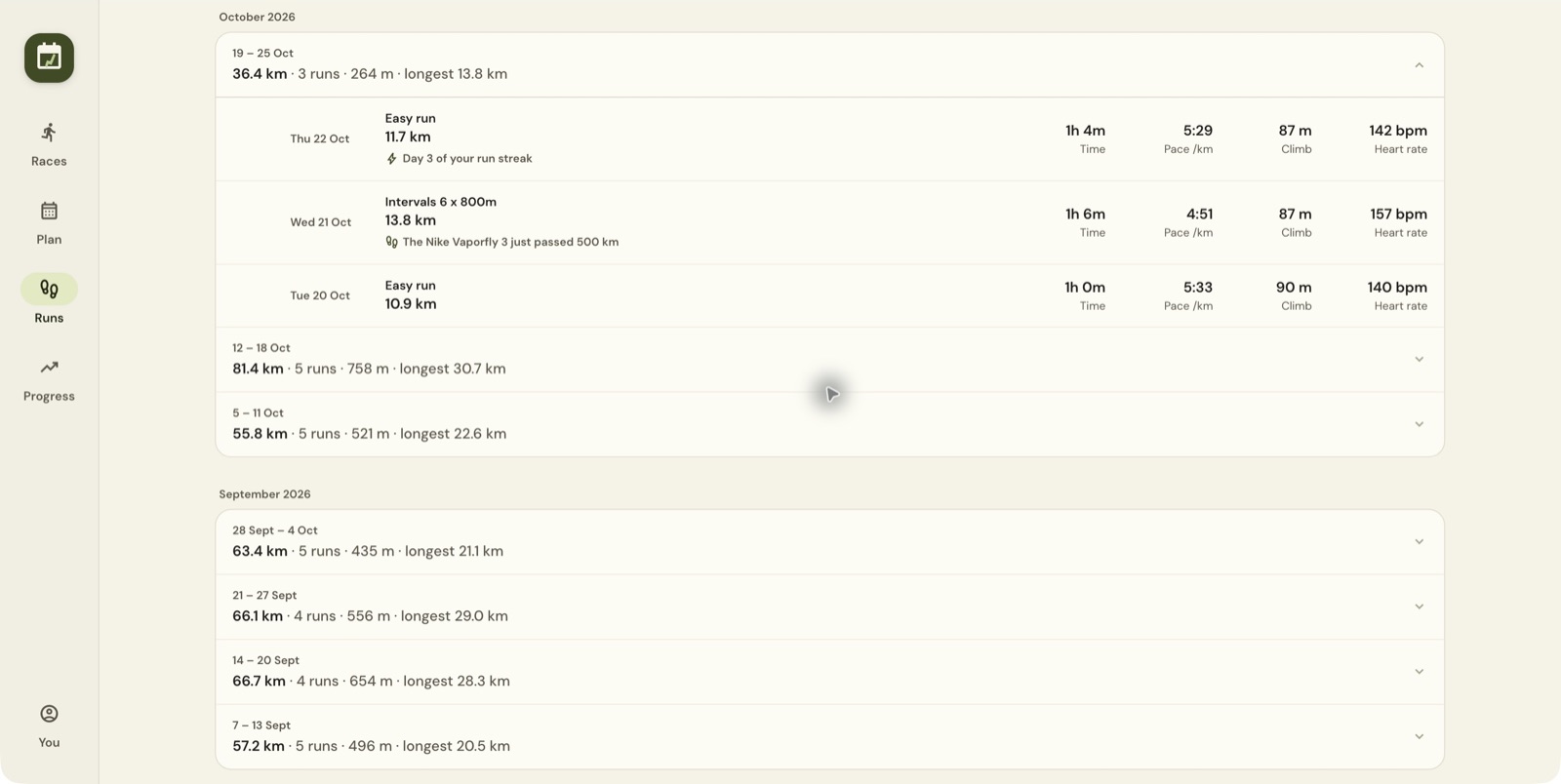
Expand This week in words, where offered, to see a short description of milestones or changes. In this example it notes the first run past 30 km and a 46% increase in distance over the previous week. Use the summary to find the underlying sessions, then check them.
If data is absent, review the source recording and You → Connected apps. Imported or synced runs can contain timing and distance without routes or heart-rate measurements.
Still stuck? Email [email protected] and say which page you were on.