Import, back up and recover your data
Use You → Your data to bring in run files, keep a copy of your information or recover a deleted race. The same screen explains the separate choices for deleting your data and closing your account.
Bring in runs from files
Choose Import runs from files. The screen accepts .fit, .gpx and .tcx files, or a .zip containing them. An export from your running service or watch can include many files at once.
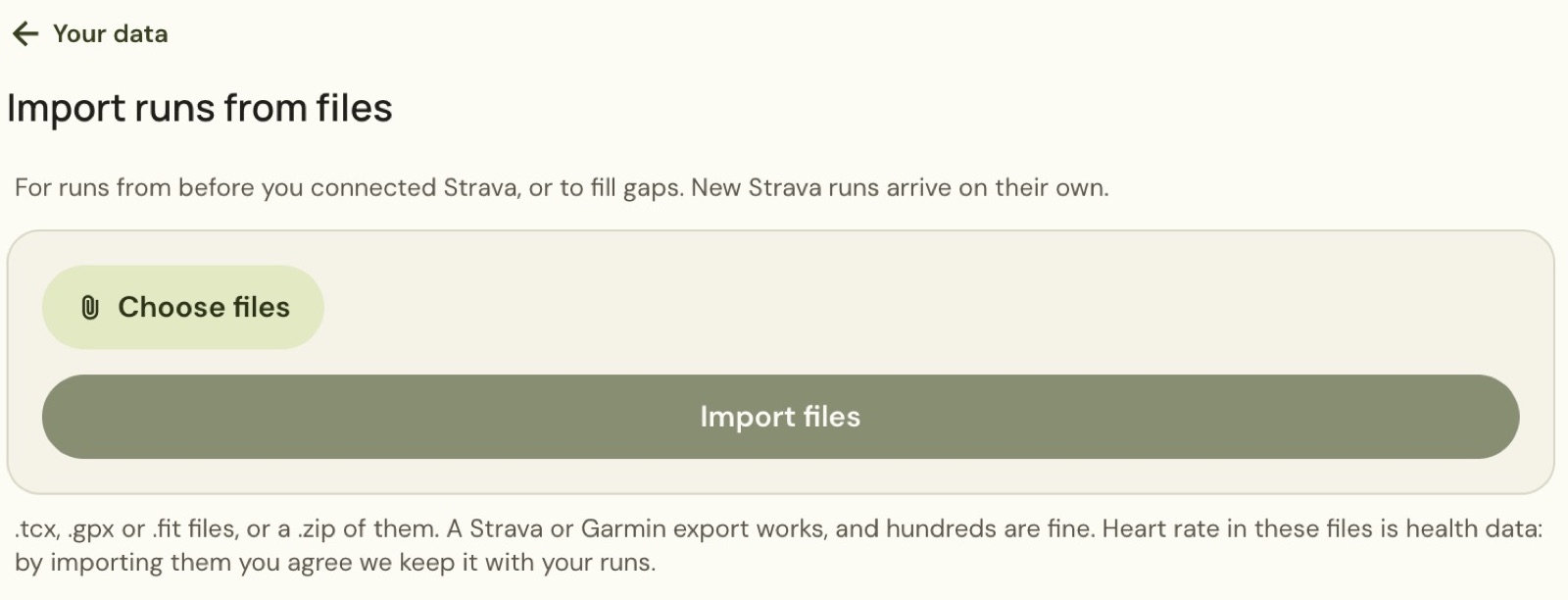
Use Choose files to select the files you want, then Import files to start the import. This can help fill gaps or bring in runs from before you connected a service. New runs from a connected service arrive separately.
Heart rate in imported files is health data. The screen explains that importing it means agreeing that the app keeps it with your runs. Read that message before choosing an export that contains heart-rate readings.
Download a backup
Return to Your data and choose Download a backup under Keep a copy. The app prepares your information as one file for you to keep.
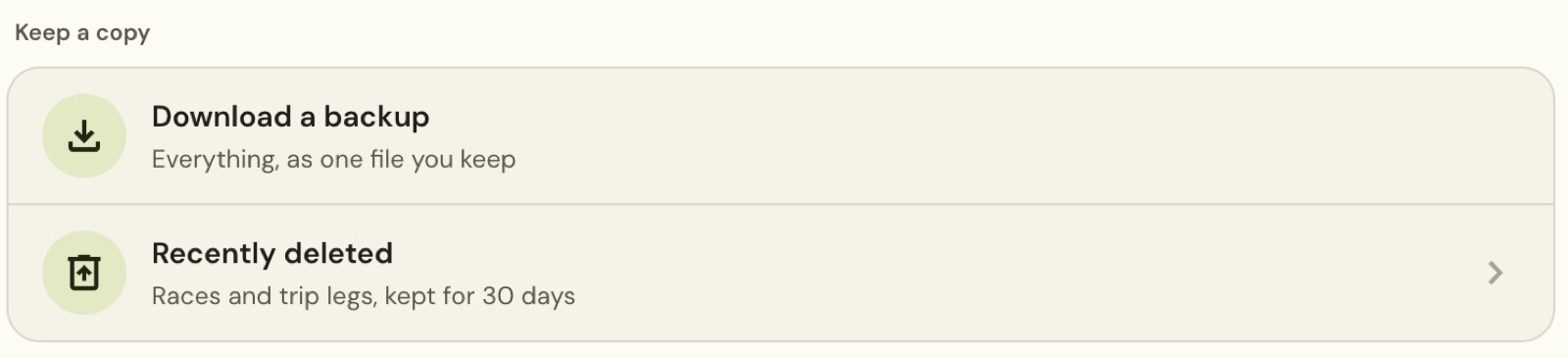
Wait for the preparation to finish, then check your browser’s downloads. The example downloaded a JSON file with the date in its name. Store your copy somewhere you can find it when you need it.
A backup is separate from recovering something you have just deleted. Use Recently deleted when you want an eligible race or trip leg back in the app.
Restore a deleted race or trip leg
Open Recently deleted from Your data. Deleted races and trip legs are kept there for 30 days. Each entry shows what was deleted and how long remains before it is removed.
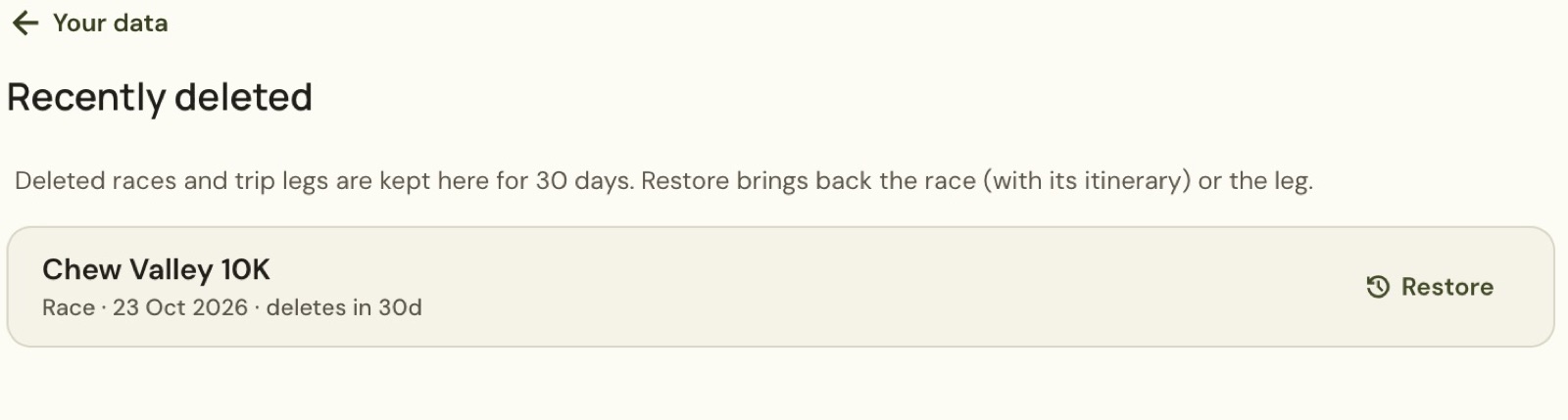
Choose Restore beside the entry you want. Restoring a race brings back the race with its itinerary; restoring a leg brings back that leg. Return to Races or the race’s Trip to find the restored entry.
The example’s Chew Valley 10K returned to Races with its original date and Interested status. This recovery screen covers races and trip legs. It does not offer recovery for deleted runs.
Understand the permanent deletion choices
At the bottom of Your data, the Delete section gives two choices. Read their descriptions before starting either flow.

Delete all my data removes your data while keeping your account. You stay signed in. Delete my account removes everything, including the account.
The screen says both choices are permanent. It offers a backup first, then asks you to type a confirmation. These choices are separate from the 30-day recovery for individual races and trip legs.
Still stuck? Email [email protected] and say which page you were on.